Visual review
Preview images, HEIC, video, audio, PDFs, and common text formats without opening separate apps.

Review crowded local folders in one focused workspace, with quick previews, useful details, and navigation that always keeps your place.
Keep nearby files, a large preview, and useful details visible while you move through images, video, audio, text, and PDFs.
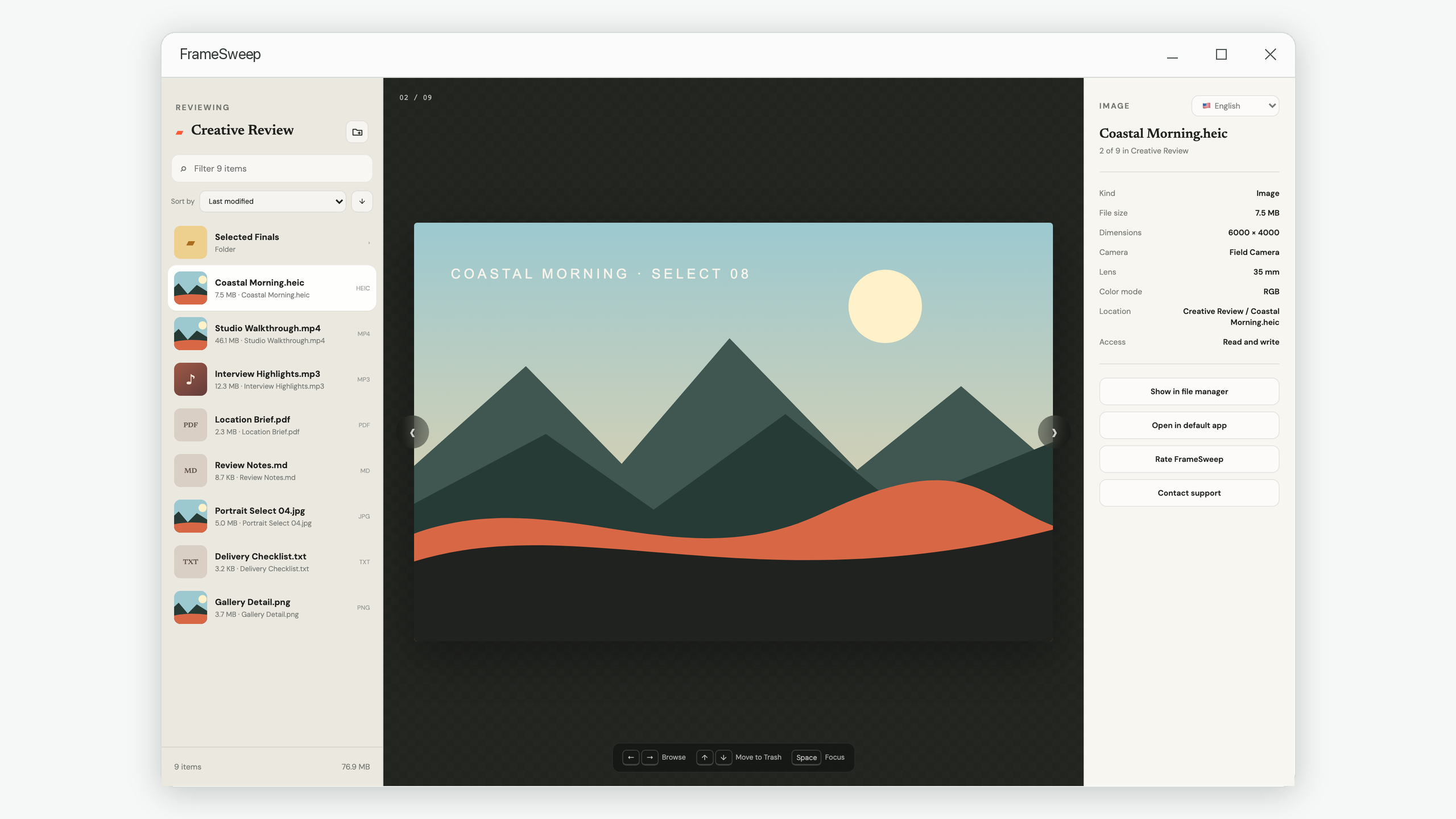
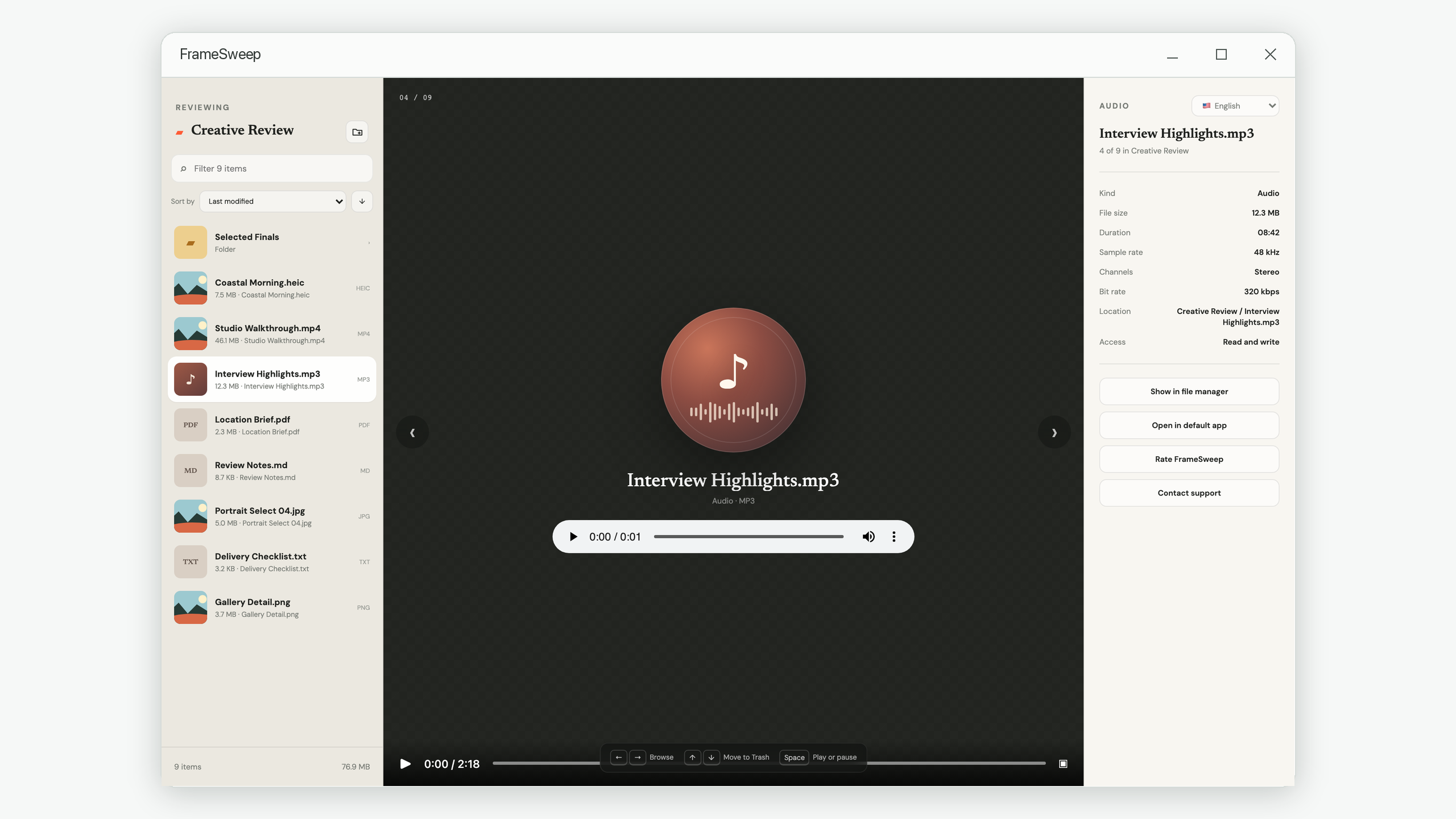
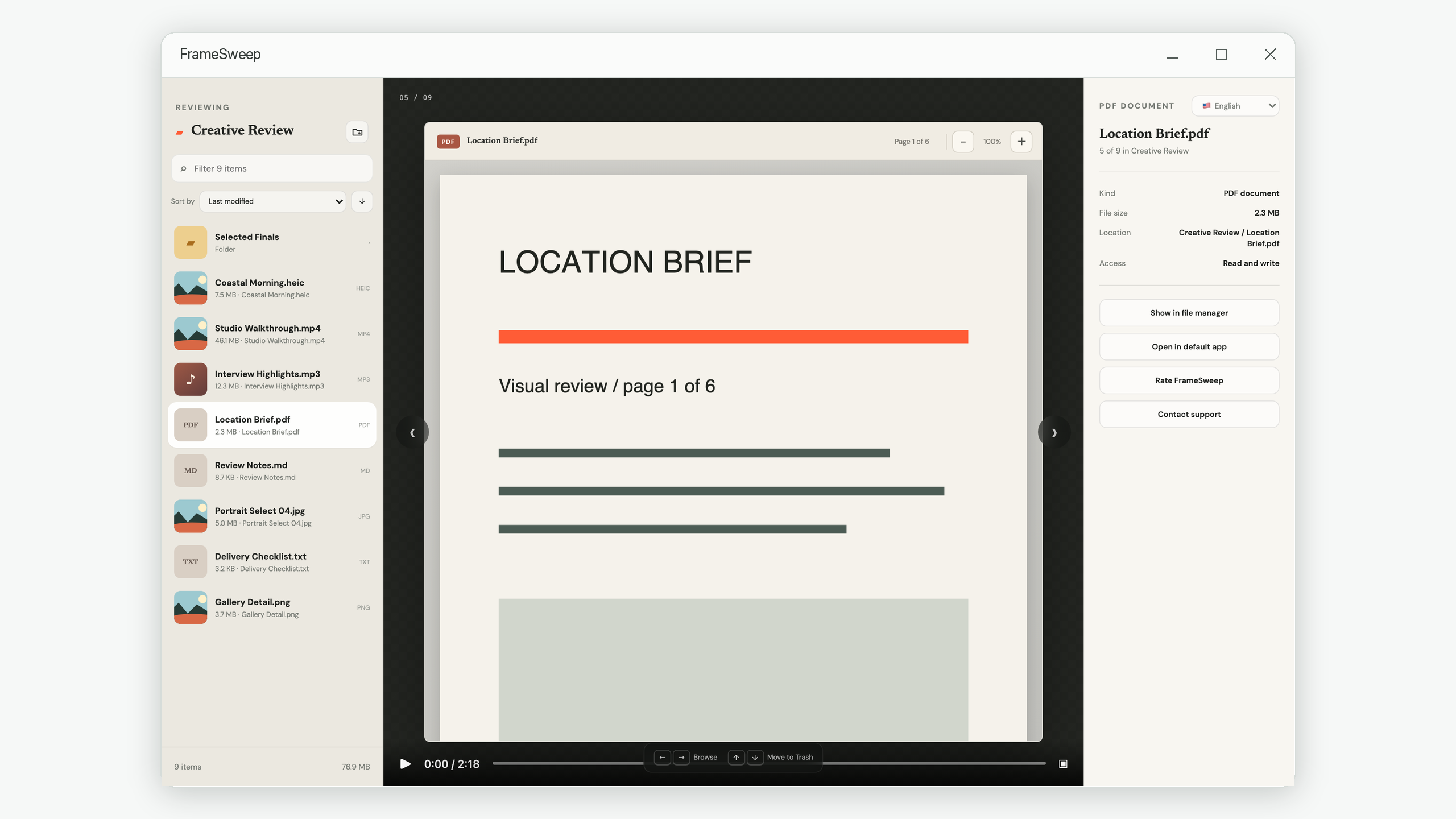
From a folder full of recent media to a mixed delivery archive, FrameSweep keeps the list, preview, and file details visible together.
Preview images, HEIC, video, audio, PDFs, and common text formats without opening separate apps.
See the current folder, enter a subfolder when needed, and return without recursive scanning.
Sort by newest modification, creation time, or file name, then filter the current list instantly.
Use Left and Right to browse and Up or Down to move the current file to the system Trash.
Scroll through PDF pages naturally while pages are rendered only when they are needed.
Undo restores a removed item and returns directly to that file so your review position stays clear.
Start with any local folder you want to inspect.
Preview, sort, filter, and inspect each item.
Move only unwanted files to Trash and undo when needed.
Useful workflows that stand on their own, whether you use FrameSweep or your existing file tools.
A pass-based method that preserves your position and decision quality.
SAFE CLEANUPStart with low-risk clutter and keep recovery available.
DECISION FATIGUEA bounded 20-minute system for steady, safer progress.
MIXED FORMATSUse one consistent inspection sequence across mixed folders.
No. FrameSweep reviews files on your device and does not require a cloud account.
No. It shows the current folder only. You decide when to open a subfolder.
Common images, HEIC, video, audio, PDF documents, and text-based files are supported. Unknown formats can still be opened in their default app.
FrameSweep sends files to the operating system Trash or Recycle Bin. Availability of later recovery depends on your system settings.
Yes. During the undo period, the file is restored and becomes the active preview again.
The file list is virtualized and thumbnails load on demand to keep navigation responsive.
No account or sign-in is required.
Email support@iamdev.me with questions or feedback.
Get FrameSweep from Microsoft Store.
View on Microsoft Store