“Clean up files” sounds like a simple task until you open the folder. A filename means nothing. A photo might be the only good frame. A PDF might be a receipt. An old project archive might be useless—or the one thing a client asks for next month. Each file carries uncertainty, and uncertainty turns a click into a decision.
This is why storage advice often fails. Buying a larger drive removes urgency but not confusion. Creating more folders can hide the clutter while increasing the number of places to search. The useful question is not “How do I become ruthless?” It is “How do I make each decision smaller and safer?”
The four reasons cleanup stalls
1. The scope has no boundary
“My computer” is not a finishable task. Neither is “all photos.” Without a boundary, every action reveals more work and progress is impossible to see.
2. Every file seems to require a different test
An image needs visual inspection. Audio needs listening. A PDF needs its first page. A ZIP archive needs context. Constantly switching tools raises the cost of even easy decisions.
3. Deletion feels irreversible
When the consequence is unclear, keeping everything feels rational. If the cleanup workflow uses immediate permanent deletion, hesitation is a safety response—not laziness.
4. “Keep” has no definition
If every file is evaluated on vague future possibility, almost anything might be useful. Decisions become faster when the session has a rule tied to a specific purpose.
The 20-minute cleanup system
This routine is designed to end before attention collapses. It favors repeatability over heroic one-time purges.
Minute 0–2: choose one visible scope
Pick one current folder. Do not include child folders automatically. Good scopes include one Downloads folder, one event, one export batch, or one month of screenshots. If the folder still feels too broad, choose a named subfolder.
Minute 2–4: write one keep rule and one remove rule
A keep rule describes what the folder is for. A remove rule describes an objective failure.
Remove: files that are clearly blurred, accidental, blocked, or exact redundant exports.
Remove: completed installers, failed downloads, and verified duplicate archives.
Minute 4–14: make only obvious decisions
Move through the folder in a stable order. If you know the answer quickly, act. If you hesitate, keep the file in place and move on. The session is successful even if uncertain files remain. Its purpose is to reduce the folder without exhausting your ability to judge.
Minute 14–18: inspect the uncertainty cluster
Return to only a few skipped items. Preview content or compare nearby versions. Use metadata to answer a concrete question: Is this full resolution? Is it the newest edit? Is the recording long enough to contain the interview? If the uncertainty remains, do not manufacture confidence. Keep the item for a later review with better context.
Minute 18–20: stop cleanly
Finish the current small group, note where you stopped if necessary, and leave removed files in the system Trash or Recycle Bin. Do not expand into another folder because two minutes remain. A clean stopping point makes the next session easier to start.
Reduce friction without creating new risk
Good cleanup tools reduce repeated mechanical work: opening separate applications, resizing windows, finding the current filename again, and scrolling back after an undo. They should not make irreversible actions effortless.
| Helpful friction to remove | Safety friction to keep |
|---|---|
| Repeatedly opening and closing previews | A recoverable Trash step before permanent deletion |
| Losing the current item after sorting | A pause before emptying Trash |
| Fetching every thumbnail in a huge folder | Verifying backups for irreplaceable files |
| Navigating an endless recursive tree | Choosing when to enter another folder |
Decision rules that are actually useful
Rules work best when they describe evidence, not emotion. Here are adaptable examples:
- Unique value: Keep an item if it contains information not represented elsewhere.
- Replacement cost: Keep or archive it if reacquiring it would take meaningful time or money.
- Project relevance: Move it to the project if it is still active; archive it when the project is closed.
- Objective failure: Remove it if it cannot fulfill its purpose because it is corrupt, empty, or unusable.
- Uncertain consequence: Defer if you cannot explain what would happen after removal.
Three cleanup approaches that usually backfire
Creating an “Everything old” archive
This reduces visible clutter but creates a future search problem. Archive by project, year, or meaningful category, and include a simple index when the archive is complex.
Deleting by age alone
Age is useful for finding candidates, not making the final decision. Old temporary files may be disposable; old records may be more important than recent ones.
Trying to finish in one session
Decision quality declines before motivation does. A late-session mistake can erase the benefit of hundreds of correct choices. Stop while the rules still feel clear.
Measure progress in decisions, not empty space
A successful session may free little storage if it relocates important documents and labels uncertain items. It still improves the system. Better measures are:
- One folder reached a clear stopping point.
- Important files moved to intentional homes.
- Obvious failures moved to recoverable Trash.
- The remaining uncertainty became smaller or better defined.
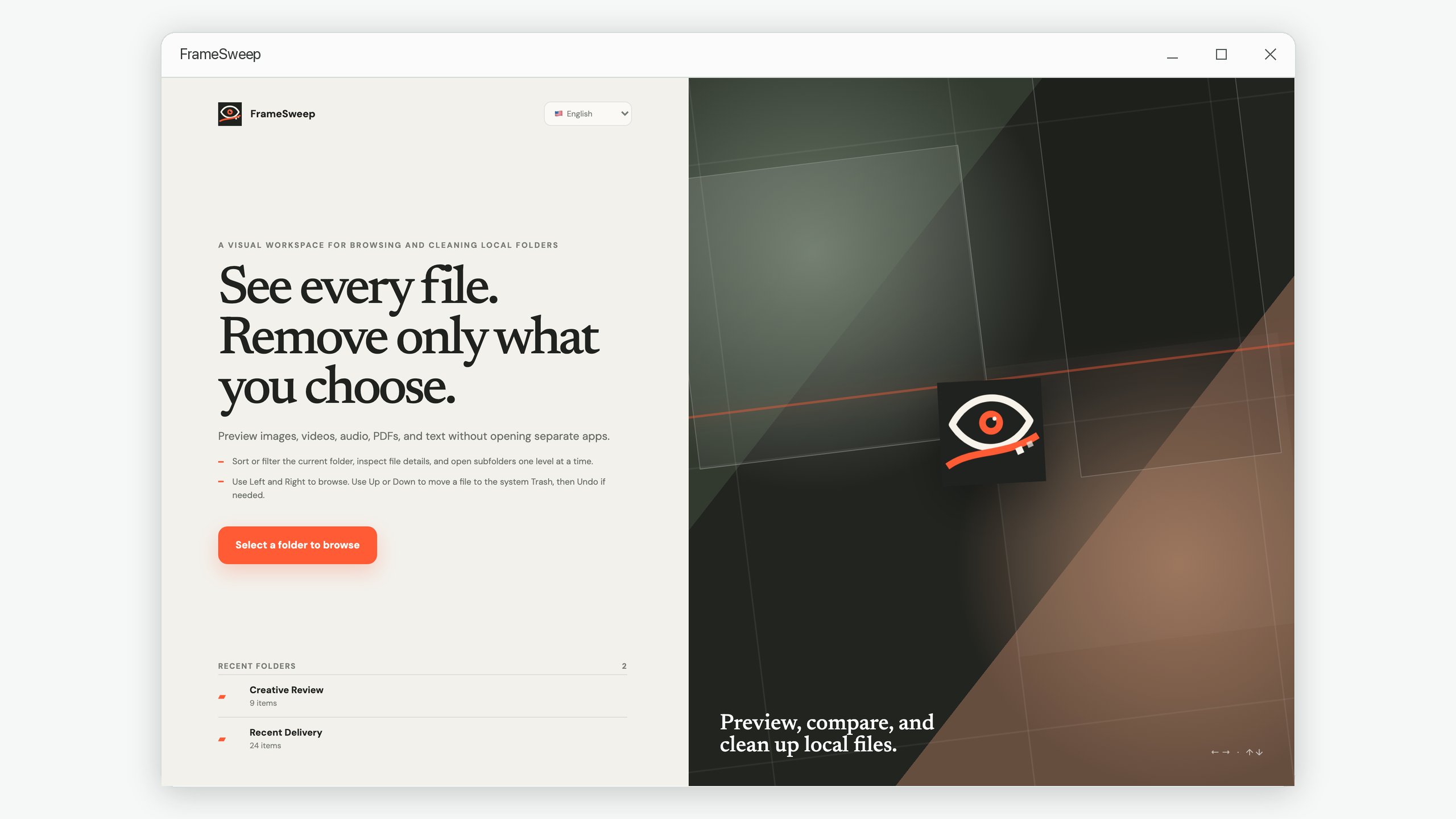
FrameSweep is designed around this kind of bounded review: one current folder, a stable sorted list, previews for common formats, keyboard movement, and a recoverable removal flow. But the 20-minute method works with any tools that preserve the same boundaries.
Make each file decision smaller
FrameSweep keeps the current folder, preview, and useful details in one local workspace so review sessions have less mechanical friction.
View FrameSweep on Microsoft Store