Mixed folders are common: a client delivery may include a PDF brief, HEIC reference photos, MP4 clips, an MP3 interview, a Markdown checklist, and an unfamiliar project file. The content is related, but the operating system often sends each format to a different application. After several files, the task becomes window management rather than review.
The solution is not necessarily to find one application that edits everything. Review and editing are different jobs. A review workflow needs only enough information to identify the file, judge relevance, and choose the next action. That smaller goal makes a unified process possible.
The five-step inspection sequence
- Identify: Read the name, extension, size, and folder context.
- Preview: Load only enough content to understand what the file is.
- Verify: Check metadata only when it resolves uncertainty.
- Decide: Keep, relocate, open for deeper work, or move to Trash.
- Continue: Preserve the list position and move to the next item.
Apply the same sequence to every supported type. Consistency matters more than whether every preview offers identical controls.
How to preview HEIC images
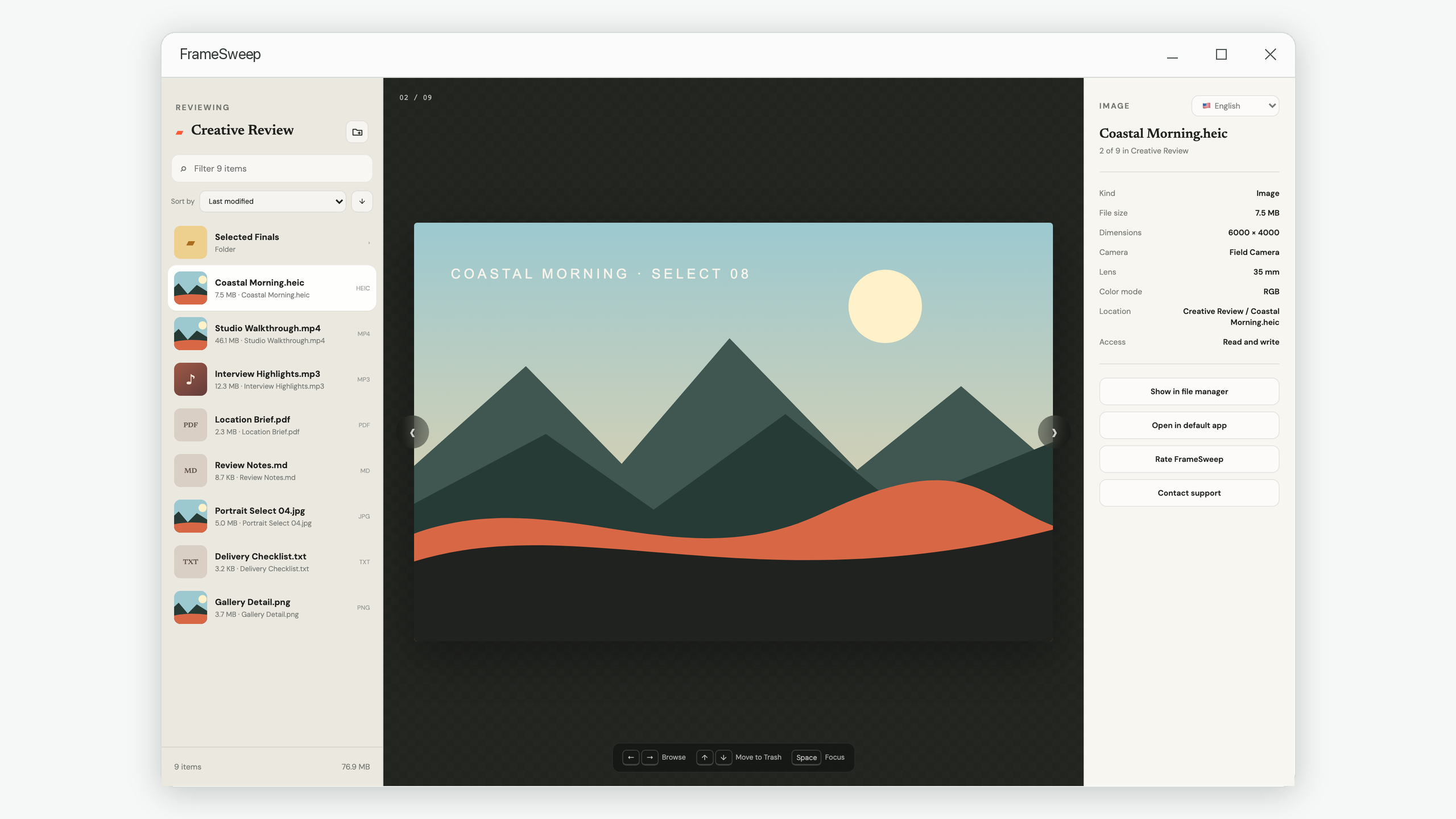
HEIC is efficient and common in phone photo libraries, but preview support varies across installed applications and operating system configurations. If the file manager shows no thumbnail, do not assume the image is corrupt.
For review, you need a decoded visual preview, orientation applied correctly, and basic details such as dimensions. Convert a copy only when another application or recipient genuinely requires JPEG or PNG. Repeatedly converting the only original can discard metadata or create confusing duplicates.
How to review PDFs without turning preview into reading
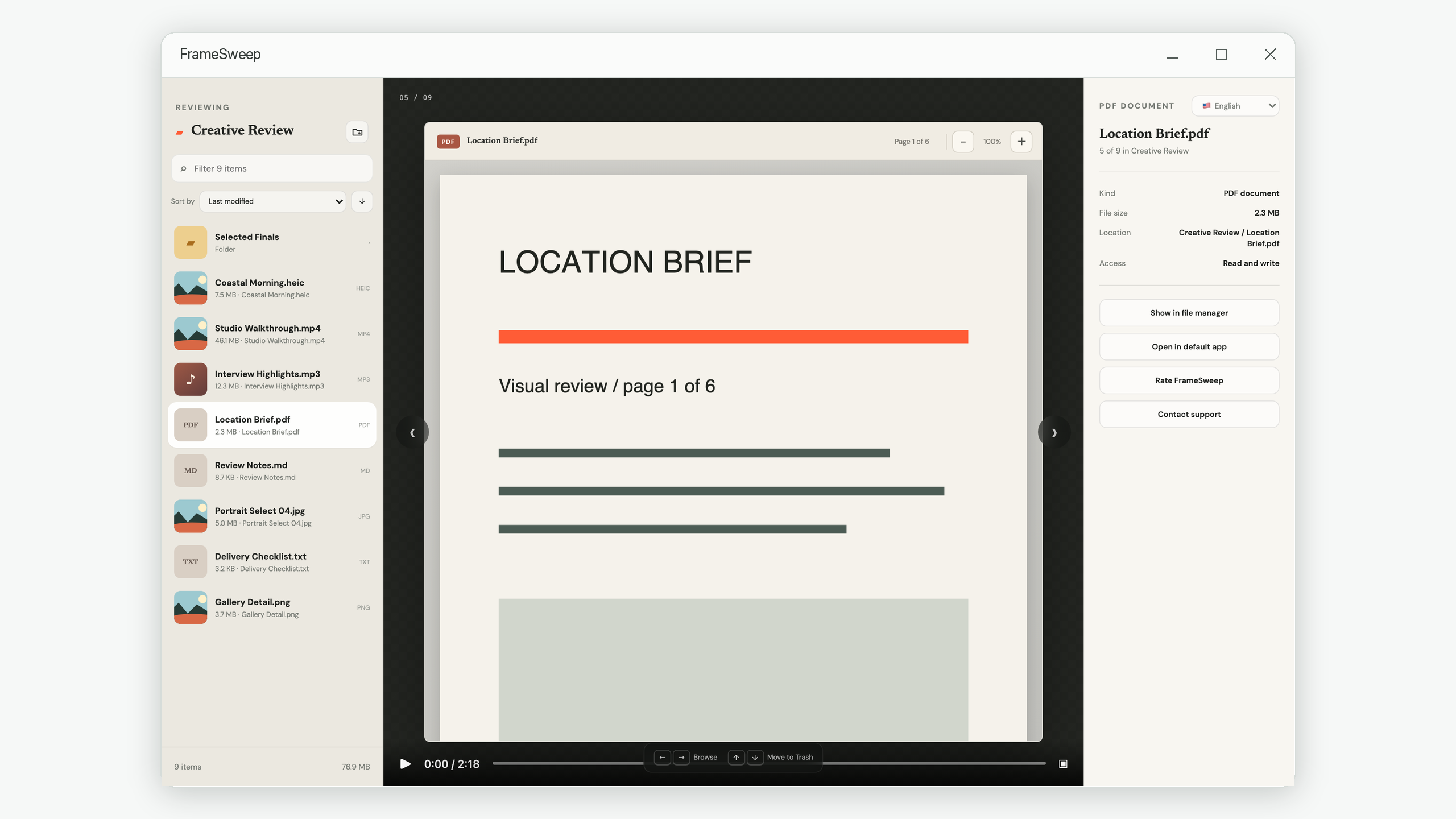
For organization, the first page often reveals the title, owner, date, or purpose. Scroll further only when pages differ meaningfully or you need to verify completeness. Continuous vertical scrolling is more natural for this task than repeatedly pressing a page-change key because it preserves the document’s visual flow.
Large PDFs should load pages on demand. Rendering every page before showing the document wastes time and memory, especially when the first page is enough to decide that the file belongs elsewhere.
How to inspect audio efficiently
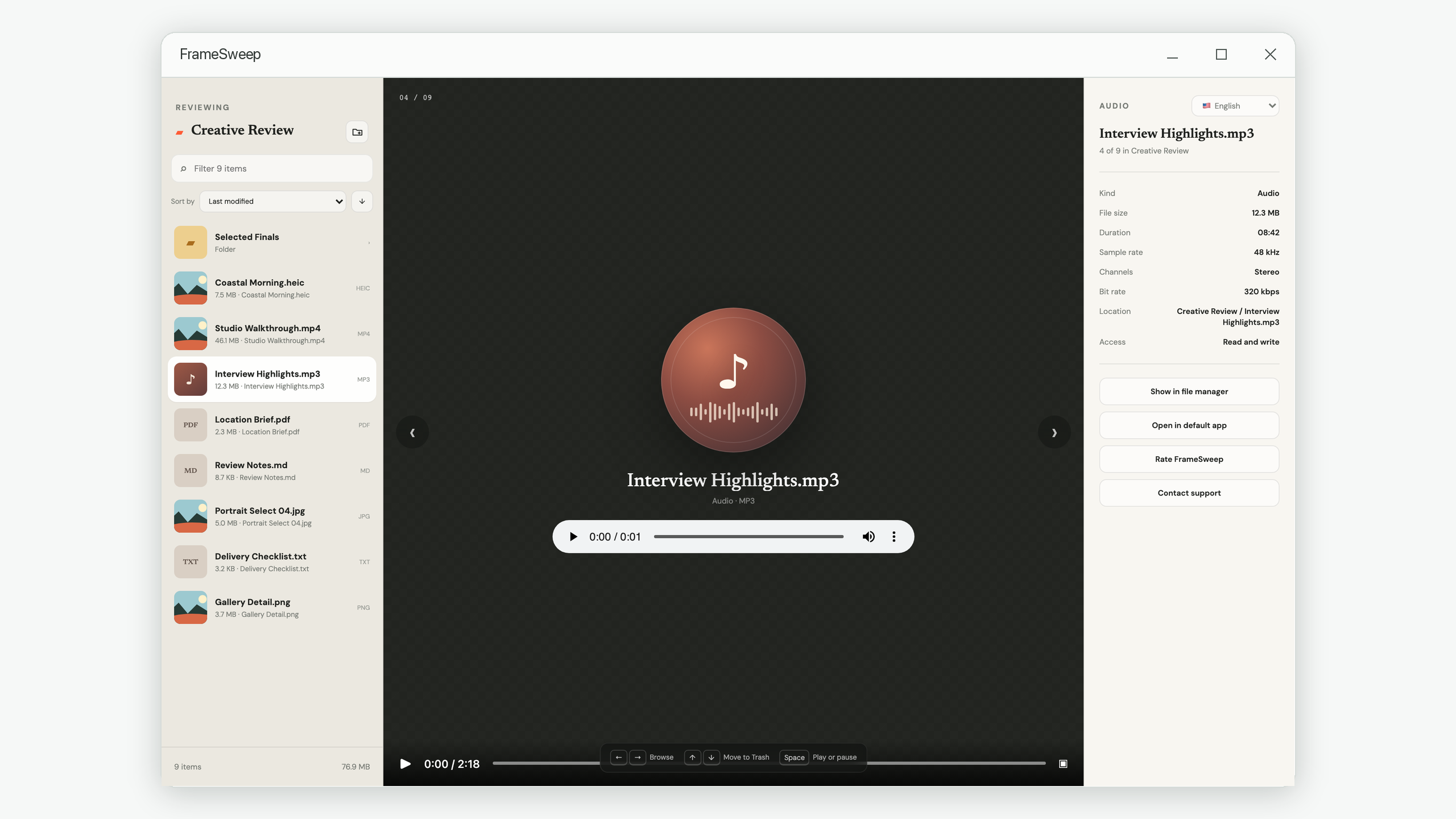
Do not listen to an entire recording merely to identify it. Start with the filename and duration, then play the opening. For interviews or field recordings, sample the middle and ending if seeking is available. Listen for intelligibility, clipping, background noise, and whether the recording contains the expected subject.
Useful metadata includes duration, channel count, sample rate, and bit rate, but these values do not tell you whether the content is valuable. They answer technical questions after identity is established.
How to inspect video without watching every minute
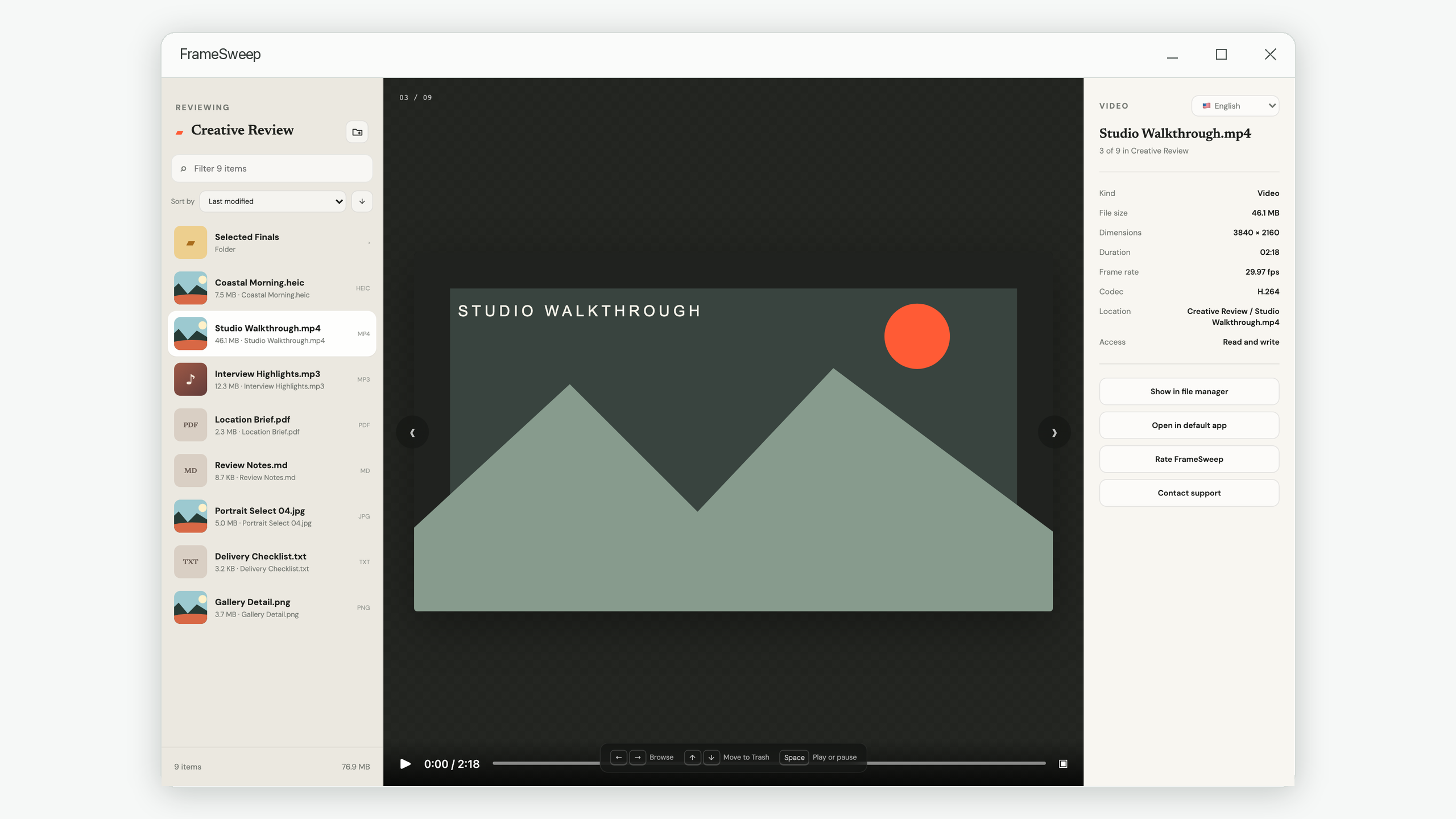
Play the beginning to identify the take, then seek to one or two points. Check whether the file has a clean start, useful middle, and complete ending. Dimensions, duration, frame rate, and codec help distinguish a camera original from a compressed export, but visual content remains the deciding factor.
If a preview cannot play a codec, keep the file and open it in the default media application. Unsupported preview is not proof of damage.
How to preview text, Markdown, and HTML safely
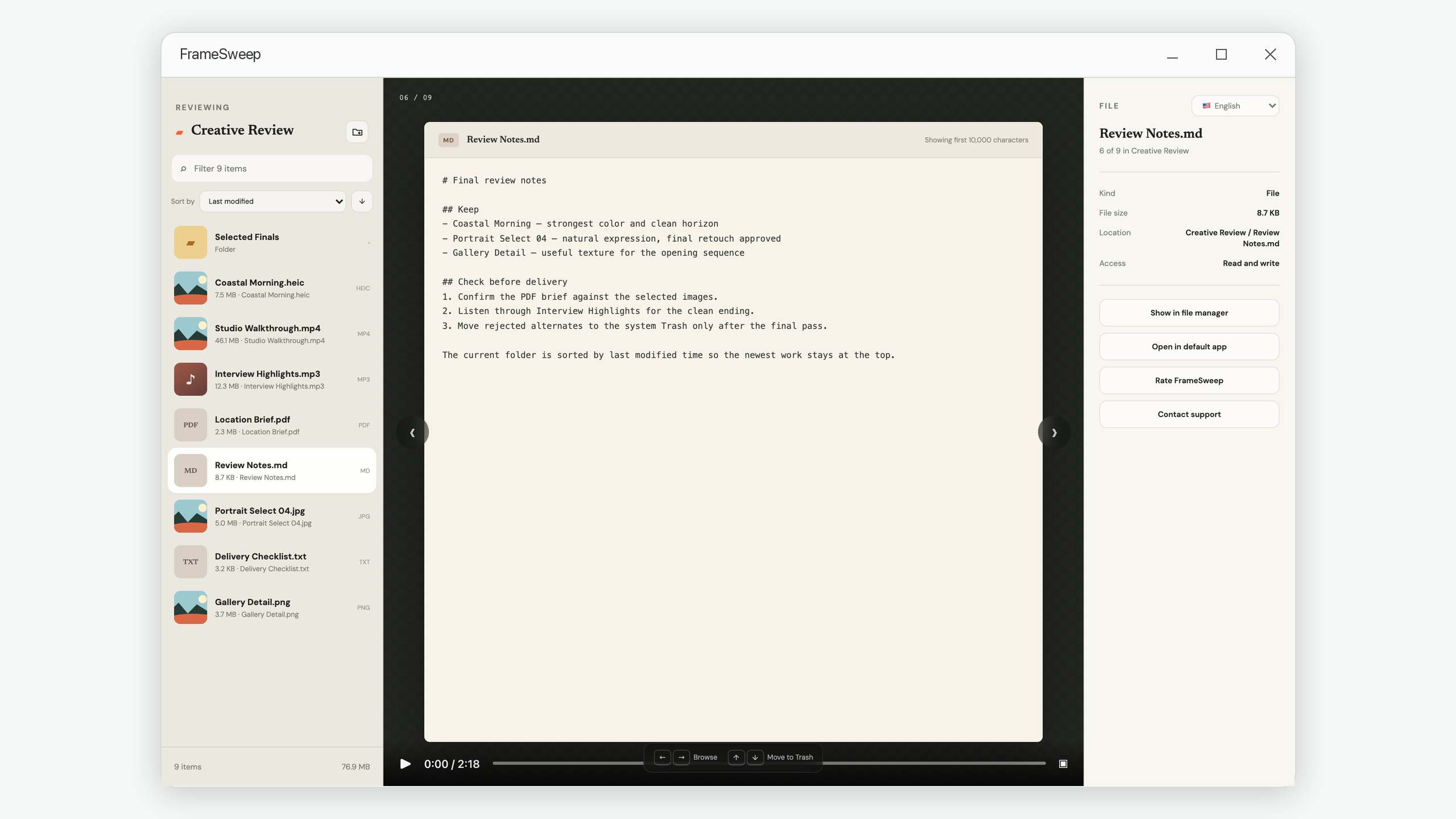
Plain text formats are often useful even when their extensions differ. TXT, Markdown, JSON, CSV, logs, source code, and many HTML files can be identified from a short decoded sample. For very large files, the beginning usually contains headers, field names, metadata, or a description of the content.
Limit the preview rather than loading millions of characters into the interface. A 10,000-character sample is enough for identification in most cases. If the sample contains unreadable control characters or null bytes, treat the file as binary and stop guessing.
What to do with unknown binary files
Unknown files deserve restraint. Do not render arbitrary bytes as text and do not rename the extension to see what happens. Use the parent folder, filename, creation source, and associated application to identify the file. If it belongs to an active project, keep it with that project even if the review tool cannot display it.
A good fallback is deliberately boring: show the name, extension, size, location, and buttons to reveal the file or open it in the system’s default application.
Keep large folders responsive
A preview workflow should not request every thumbnail as soon as a directory opens. Only visible rows and nearby items need thumbnails. The list itself can represent thousands of entries without keeping thousands of rendered rows on screen. Likewise, PDFs should render visible pages and text previews should request a bounded range.
This on-demand approach improves speed and reduces unnecessary disk work. FrameSweep follows these principles with a virtualized list, lazy thumbnails, bounded text previews, and PDF pages rendered during scrolling.
Mixed-file review checklist
- Identify it from name, extension, and context.
- Preview only enough content to understand its purpose.
- Use metadata to answer a specific unresolved question.
- Open the default app if the format is unsupported or deeper work is needed.
- Use a recoverable removal step and continue in a stable order.
The important shift is from “open every file fully” to “gather enough evidence for the current decision.” That is what turns a folder of incompatible formats into one coherent review task.
One review flow for mixed local folders
FrameSweep previews common media, PDFs, and text in one focused workspace while keeping unknown formats available to their default applications.
View FrameSweep on Microsoft Store