The Downloads folder is difficult to organize because it is not a real category. It is an arrival point. A tax document may sit beside an installer, a duplicate photo, a video attachment, and a text export. Deleting everything older than a date is fast, but it assumes age equals importance. Moving everything into one archive folder avoids deletion but preserves the mess.
The safest approach is staged. Remove files with low information value first, relocate clearly important documents second, and review uncertain media last. This produces useful free space early without forcing risky decisions.
Before cleanup: set three safety rules
- Do not permanently delete during the session. Use the operating system Trash or Recycle Bin.
- Do not clean while downloads are active. A partial file may look corrupt or empty because it is still being written.
- Do not use one rule for every format. An old installer and an old signed document do not carry the same risk.
Step 1: take a quick inventory
Look at the folder total, the oldest and newest dates, and the largest files. You are not making decisions yet. You are identifying which kinds of clutter dominate.
Common patterns include repeated installers, exported ZIP archives, screenshots with meaningless names, duplicated email attachments, temporary video deliveries, and documents that never reached their permanent folder. If one pattern accounts for most of the space, begin there.
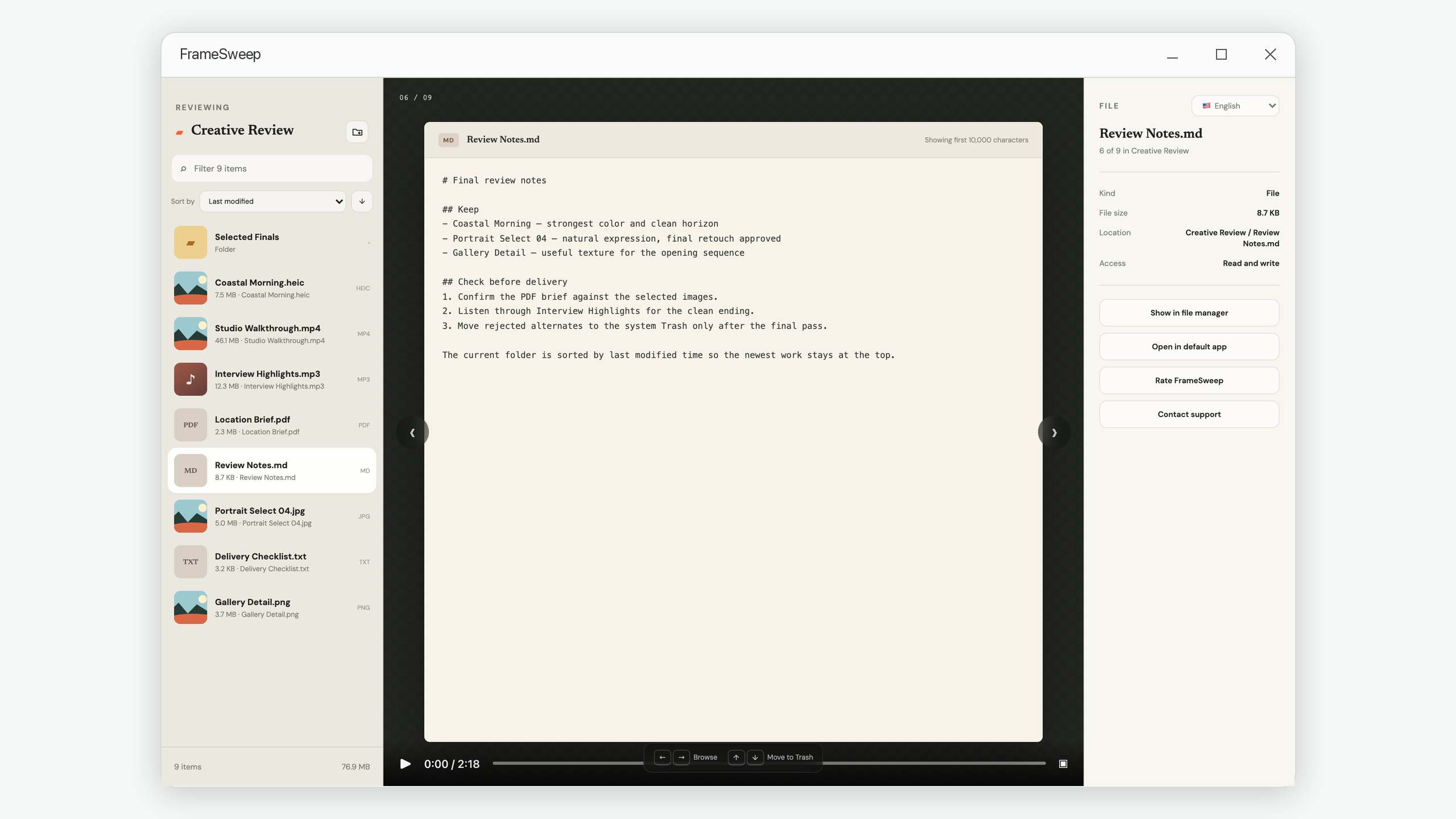
Step 2: sort by last modified time, newest first
Newest-first ordering puts your current work at the top and reveals the boundary between active and forgotten downloads. Recent files are also easier to recognize because you still remember why you downloaded them.
Review the first screen briefly. Move anything clearly important—receipts, signed forms, active project references—to its permanent home. This is not busywork: it prevents valuable files from remaining mixed with disposable downloads.
Step 3: remove low-risk clutter first
Start with items whose future value is easy to judge:
- Installers for applications you already installed and can download again.
- Duplicate archives where a newer complete copy exists.
- Empty files and failed downloads.
- Temporary exports that have already been delivered and safely stored elsewhere.
- Attachments that are already saved in the correct project folder.
Be cautious with installers for discontinued software, device drivers, paid assets, or versions required by an old project. “Downloadable again” should be verified, not assumed.
Step 4: review the largest files separately
Large files offer quick storage gains, but size is not evidence that a file is unnecessary. Videos, disk images, design packages, and archives may be both large and important. Sort by size temporarily or filter for known large formats, then answer three questions:
- Can I identify what this is without opening it?
- Does another verified copy exist?
- Would obtaining or recreating it again be difficult?
If the answer to the first question is no, preview or inspect the file. If the answer to either of the next two is yes, move it to an organized folder instead of deleting it.
Step 5: treat documents as relocation candidates
PDFs, spreadsheets, text exports, and HTML receipts often belong somewhere else. Their presence in Downloads may be the problem—not the files themselves. Use a few durable destinations rather than dozens of tiny folders:
- Finance: receipts, invoices, statements, and tax records.
- Projects: briefs, reference material, and client documents.
- Personal records: forms, confirmations, and certificates.
- Reading: manuals, reports, and papers you intentionally want to keep.
Avoid creating a folder named “Sort Later.” That merely gives the Downloads problem a new address.
Step 6: preview uncertain mixed files
This is the slowest stage because filenames can be vague and every format behaves differently. For each uncertain item, aim to answer only “what is it?” and “is another copy already in the right place?”
Preview images and HEIC captures visually. Scrub or briefly play video and audio. Read the first page of a PDF and the opening portion of text files. Unknown binary formats should remain untouched unless you can identify them through their source, extension, or default application.
A unified preview workspace reduces the temptation to skip this stage. FrameSweep, for example, can display supported images, audio, video, PDFs, and text beside the current file list. You can use the same decision sequence with separate default apps; it simply takes more window switching.
Step 7: handle “duplicate” names carefully
Names such as report (1).pdf and report (2).pdf suggest duplication but do not prove it. One may contain an updated signature or changed page. Likewise, two images can share dimensions and file size while containing different edits.
When the consequence matters, compare contents or hashes before deleting. If you are not prepared to verify, keep the newest clearly complete copy and move the others to Trash for a cooling-off period.
Step 8: review the Trash before emptying it
Do not empty the Trash immediately after a major cleanup. Continue normal work for several days. If no application or project complains about a missing file, review the removed names once more and then decide whether to empty it.
Recovery behavior varies by operating system and storage policy, so never promise yourself that Trash is permanent protection. The safest deletion is one made after a verified backup and a short waiting period.
A 10-minute weekly Downloads routine
- Move important recent documents to permanent folders.
- Remove completed installers and failed downloads.
- Review the three largest remaining files.
- Preview items with unclear names.
- Leave uncertain items for the next session instead of guessing.
Short, regular reviews prevent the folder from reaching the point where every decision feels expensive. The goal is not an empty Downloads folder. It is a folder where every remaining item has a near-term purpose.
Review mixed Downloads without opening six apps
FrameSweep keeps supported media, PDF, and text previews beside the current folder list, with system Trash and Undo for deliberate cleanup.
View FrameSweep on Microsoft Store